This article explains the common issues that can arise with the Omnivore and how to go about troubleshooting and gaining support if needed. Below are instructions in regards to NCR & Omnivore Issues & Troubleshooting.
Devices cannot access the check at all:
An issue with the Omnivore POS connection will display on the Yumpingo devices with an error message “the Table selected doesn’t exist” when they enter the table/check number.
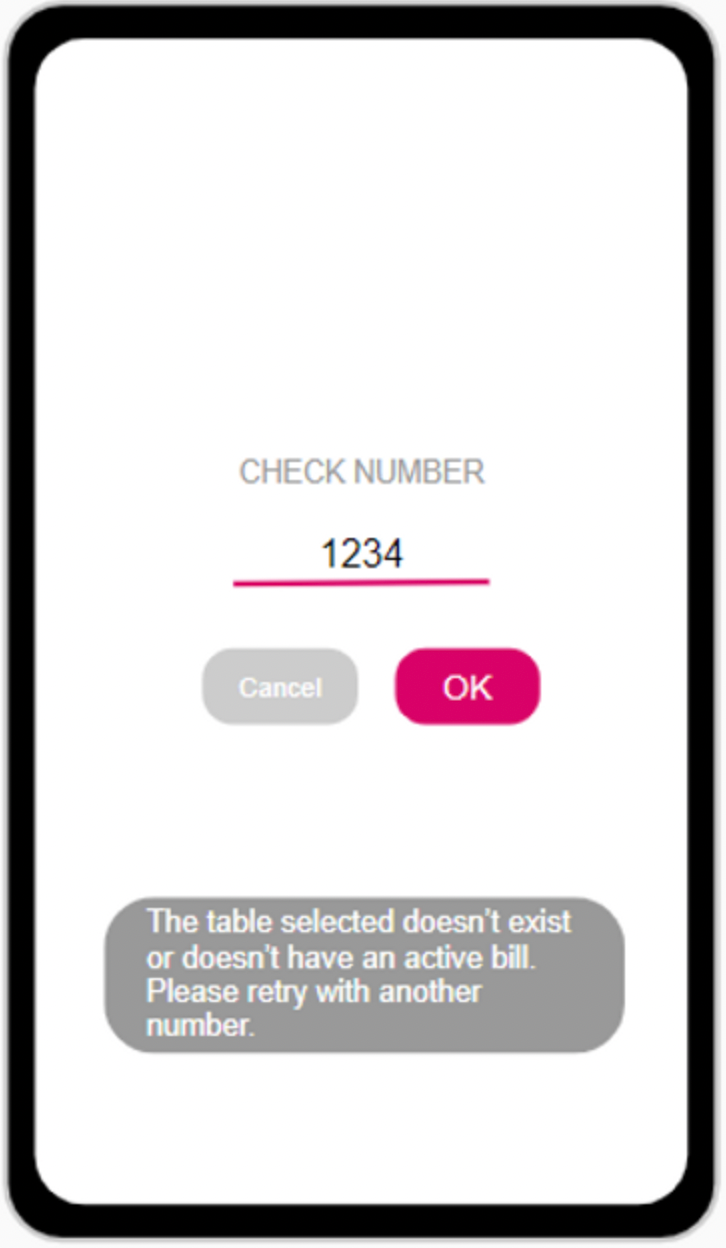
As a first step, try to follow these troubleshooting steps:
- Re-enter the check number or try another: It may be that the check number was entered incorrectly or the table has been closed out.
- Check your WiFi network: The most likely disruption is due to hardware replacement or WiFi outages at the restaurant location. If you have been experiencing any network issues with other services on site then this is likely to be the cause of the issue.
- Try another Yumpingo device: The error message could be a result of an issue with the Yumpingo device itself. If you’re able to pull the same bill on another device, contact Yumpingo.
If these options do not resolve the issue, then the issue lies with your POS system/Omnivore (the software that connects your POS & Yumpingo) rather than with the Yumpingo devices. The following steps will aid in getting the location back online.
Option 1:
- Click the Windows Start button
- Type Run, hit enter
- In the new window type in “services.msc”
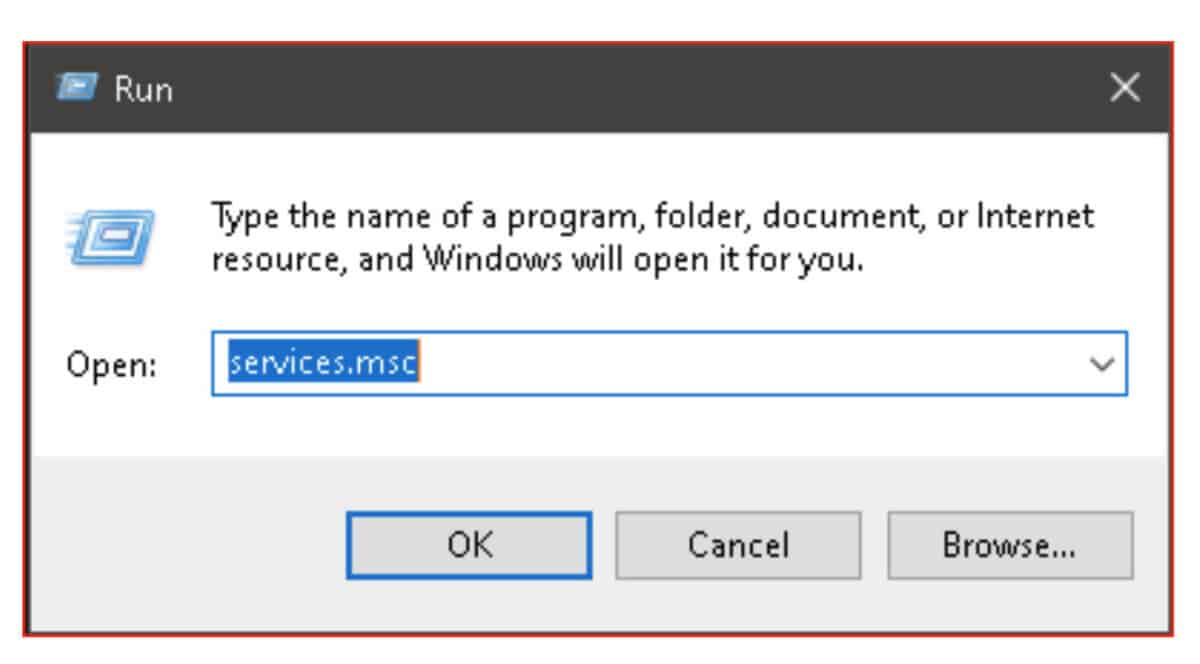
- Click OK and a new window for Services will open
- In that window, scroll down until you see the POS Agent and POS Agent Updater services
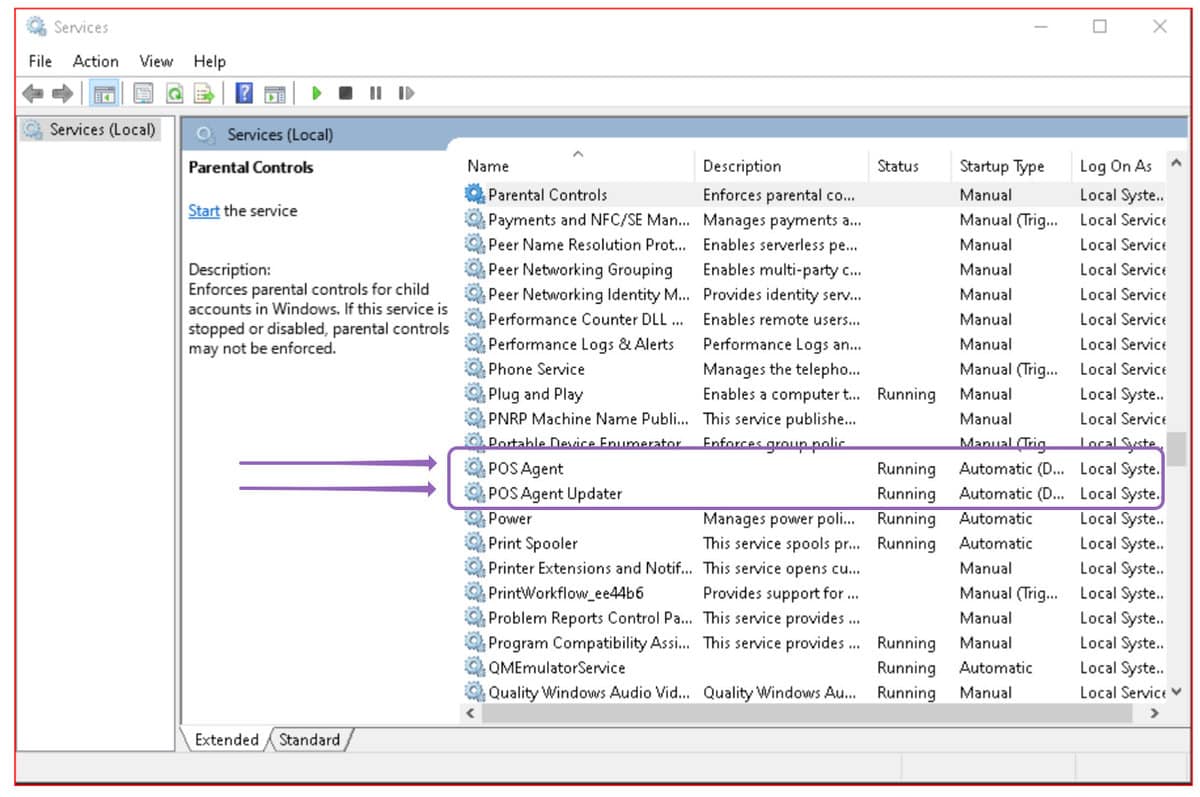
- Right click on POS Agent and click Restart or Start (whichever isn’t grayed out) a progress bar will appear, wait until it finishes
- If the location is not back online within 5 minutes of the restart. Please try option 2.
Option 2:
Restart the POS machine where the Omnivore Software is installed. If this does not get the
location back online please move to option 3. Please restart the agent.
Option 3:
To restart the Omnivore agent
Note: You can only Click Reinstall if you are the owner of the location.
- Go to Omnivore Panel login on your web browsers and log in.
- Click on Locations at the top right of the panel dashboard.
- Find the location that you wish to replace. It should be showing as Offline with a red icon.
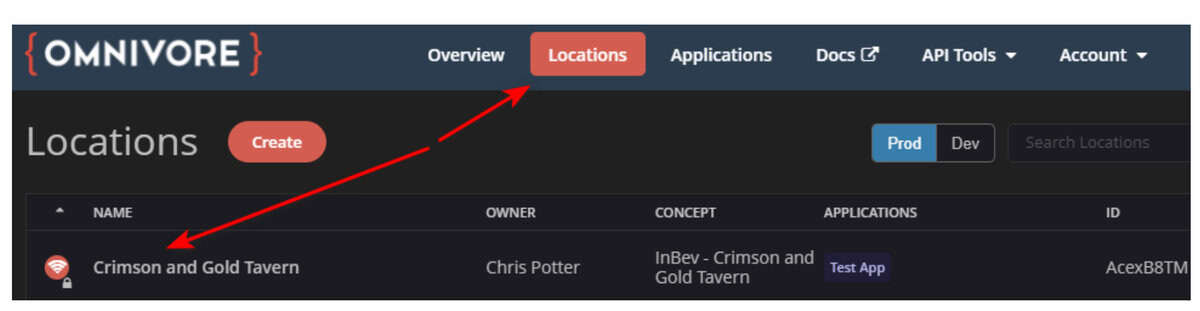
- Click on the Location name to open the Location’s page.
- On the Location’s page, you’ll see an Actions button in the top right.
- Click that to open a drop-down menu and click Reinstall.
When to contact Omnivore support
If these 2 options fail and you are still unable to use the Yumpingo devices, you will need to open a case with Omnivore support that will be triaged by the next available agent and please ensure that you always CC in support@yumpingo.com.
To do this, go through the Olo community portal and create a case for an offline location. This will escalate the case to the proper team automatically. Sending an email will have to go through the manual triage process, thus extending the time it will take to receive a response.